
Software
Novice CSV Editor
A small Windows application for editing CSV and other delimited files, with particular attention to the values you put in them.
Spend enough time working with data and you will discover how much of the job happens in ordinary text files. The database may be well designed and the ETL process carefully tested, yet someone still has to correct a heading in a supplier's export before the next import can run.
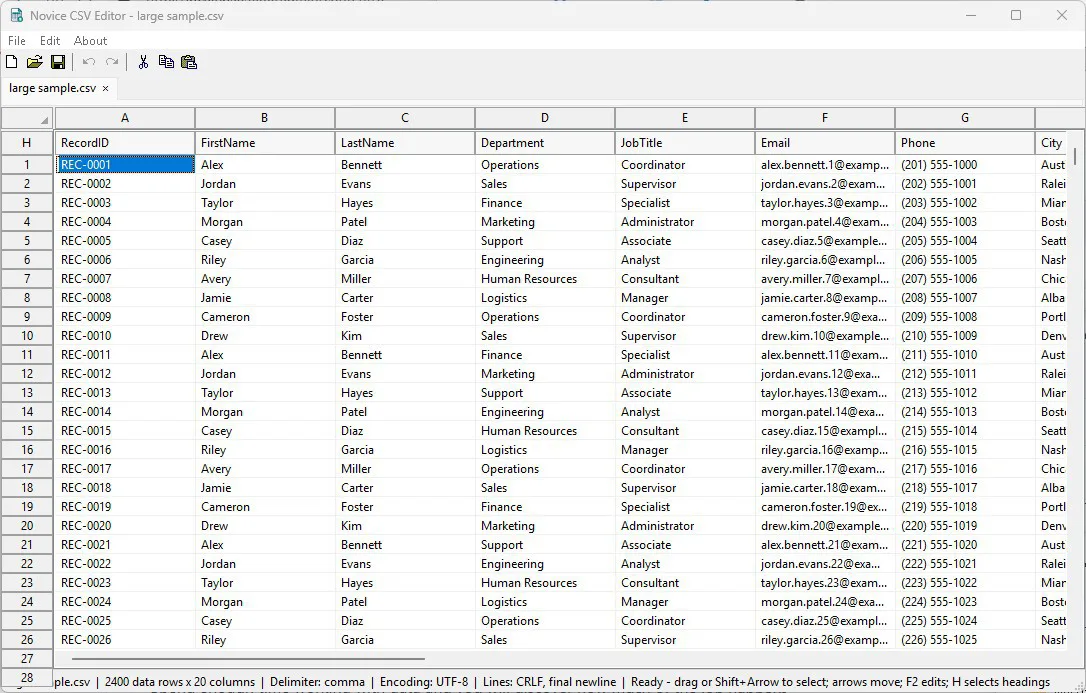
Novice CSV Editor, from Novice Acres Systems, is meant for that sort of work. You open a file, see its contents in a grid, make your changes, and save it. The rows and columns will be familiar to an Excel user, but the editor does not turn the file into a workbook. For a data engineer maintaining reference tables, or an Excel user preparing files for another system, that is a useful distinction.
First, leave the values alone
Consider an account code written as 00123. As a number, it has the same value as 123. As an identifier, it may be something quite different. The system receiving the file gets to decide what those characters mean; the editor should not make that decision on its behalf.
Novice CSV Editor therefore treats every field as text. It does not infer numeric columns, convert date-looking values, remove leading zeros, or evaluate formulas. What you see as 00123 remains 00123 inside the editor. The same principle applies to long reference numbers and codes that happen to resemble dates.
The supported files are UTF-8 CSV, tab-separated TSV, pipe-separated PSV, and semicolon-delimited text. Quoted fields can contain delimiters, quotation marks, and line breaks. Those are ordinary parts of delimited data, not reasons to split a record into the wrong columns.
Looking at the structure
The first record in the file supplies the column headings. Above those headings are the familiar letters A, B, C, and so on, with row numbers down the left. The letters and numbers are there to help you move around. They are not added to your saved file.
You can change a cell by double-clicking it or pressing F2. Arrow keys move through the grid; Tab and Enter finish an edit and move on. Select a rectangular range, use the row numbers or column letters to select whole rows or columns, or select everything from the top-left corner. Column dividers resize the view from either the letter ruler or the heading row.
Right-clicking an actual heading lets you rename it, insert a column beside it, or delete the column. Rows can be inserted and removed as well. Clearing cell contents is a separate operation from removing a row or column, which matters when you want to keep an import layout intact.
You can also copy the header row by itself. If a colleague needs the field names for a mapping document, there is no reason to send the whole file or retype thirty headings. Copy one name or the complete header, and leave the records where they are.
Using it alongside Excel
There is no need to abandon Excel to use this editor. Suppose you have prepared a set of values in a worksheet and now need them in a pipe-delimited file. Copy the worksheet cells, select the starting data cell in Novice CSV Editor, and paste. The values arrive as a rectangular block; the file keeps its own delimiter and headings.
You can go the other way, too. Copy a range into Excel, take complete data rows, or copy columns together with their headings. Clipboard transfer uses Unicode tab-separated text, independently of the delimiter used on disk. You do not have to save an intermediate comma-separated file just to move a few columns.
There is a distinction worth keeping in mind here. The clipboard carries text, not an Excel workbook with its formatting and calculations. Novice CSV Editor keeps that text as text. When you paste into Excel, Excel applies its own rules for interpreting it.
For repeated values, the operation is simpler still. Copy a cell containing TX, select the twenty State cells that need it, and paste once. That one value fills the selection. If the selection was wrong, Undo reverses the fill as a single action.
Working with several files
Each file opens in its own tab. You might keep the original extract, a lookup table, and a corrected copy open while working through a problem. Each tab retains its own edits, selection, column widths, scroll position, and Undo history while it is open.
Drop files from File Explorer onto the application to open them. If a file is already open, the editor brings its existing tab forward. Drag the tabs into the order you want, or move between them with Ctrl+Tab. A shortcut or command-line call can also pass in the filenames to open.
Tabs have individual close buttons and a right-click menu for closing one, the others, or all of them. Modified documents are marked, and closing one asks what you want to do with the changes. Undo and Redo cover ordinary cell edits, heading changes, pasted or cleared ranges, and row or column changes within each document.
Paying attention when the file is saved
When you open a file through the File menu, you choose its name and delimiter together. For a new file, you also choose the starting rows and columns, whether to include a UTF-8 byte-order mark, Windows or Unix line endings, and whether to end the file with a final newline. These details can seem fussy until a receiving system depends on them. The editor retains these supported format settings when saving an existing file.
It checks the input for valid UTF-8, correct quoting, and consistent field counts. A malformed file produces an error instead of being quietly rearranged. Saving also includes a readback check: the editor writes a temporary file beside the destination, flushes it, then reads and compares the values and format settings before replacing the destination. Save As is available when you want to keep the original and write a separate copy.
The application itself is one native C++ executable, built for 64-bit Windows 10 and later. There is no installer, separate .NET runtime, or collection of companion files to manage. The menus, toolbar, and right-click commands follow familiar Windows conventions.
A useful place for Novice CSV Editor is beside your database tools and spreadsheets. When a file needs a few deliberate changes before it can be used, you can work on those changes directly, with the field names and values in front of you.